
How to Create a Standout UX Portfolio Presentation and Choose the Best Platform
Most Jr UX designers I talk to are so busy agonizing over their portfolio that the presentation part (the one they’ll actually have to give in an interview) becomes an afterthought.
In this guide
I’ll walk through the POSTER framework for structuring your slides, compare the best platforms for building your deck, share how I presented my Clinical case study at Veeva, and cover how to tailor slides for each interviewing panel.
I did the same thing. I poured weeks into building my portfolio, then realized the night before an interview that I had no idea how to walk a panel through my UX portfolio presentation in 15 minutes.
I spent that night frantically rearranging slides like a cat chasing a laser pointer. Lots of movement, zero progress.
The portfolio got me in the door. The presentation was what I needed to get the job, and I had nothing ready.
The expectation in UX interviewing hasn’t budged: you will be asked to present and defend your case studies in front of a room of people. A solid case study presentation can be the difference between an offer and a polite rejection.
Even as a former technical recruiter, I knew this was the standard. The designers who prep for that moment are the ones who walk out with offers. The ones who wing it are the ones sending the follow-up email that starts with “I wanted to circle back…”
Completing my new portfolio was just the first step in a much bigger mountain of securing a new role.
The Short Version
Here’s how to build a UX portfolio presentation, start to finish:
- Pick one finished case study, usually your strongest. You’ll adjust the emphasis later.
- Outline it with POSTER: Problem, Outcome, Solution, Tactics, Evidence, Risks.
- Build 6 to 8 slides in a tool you already know. The detail goes in your speaker notes.
- Line up your backup material: static frames, a prototype, the artifacts that didn’t make the slides.
- Tailor the opening and the emphasis to what came up in earlier interview rounds.
- Rehearse out loud, timed to the slot you’ve been given.
And the platform question: Figma Slides if your case study already lives in Figma. Otherwise use Google Slides, Keynote or PowerPoint, whichever one you can click through without thinking about it. The full comparison is further down.
Without a Case Study, You Can’t Have a Presentation
There’s a common misconception that only shipped work is valuable and portfolio-worthy.
I don’t think that’s true for every case.
Shipping a project is the goal, sure. But it’s a team sport involving an entire organization.
I’ve run UX research studies and designed screens that never made it to production. That work still counts if you can talk about what you learned, what you’d do differently, and what constraints you were working under.
That said, you can’t build a presentation without a case study to present. If you don’t have one yet, start there.
If you’ve got a draft that still reads like everyone else’s, here’s how I fixed mine. The presentation part comes after.
The POSTER Framework: Your Case Study Presentation Backbone
I went to a virtual UX meetup not long ago where Dr. Ari Zelmanow introduced a framework called POSTER for building case study presentations. Dr. Ari has years of experience at influential companies and had hundreds of slides he could pull from to answer nearly anything a panel threw his way.
Naturally, everyone in the audience had the same question: great, but what if I don’t have 10 years of projects? POSTER works because it gives you hard boundaries that keep you focused, whether you’re working with one project or twenty. Each letter is one slide or section in your portfolio presentation structure.
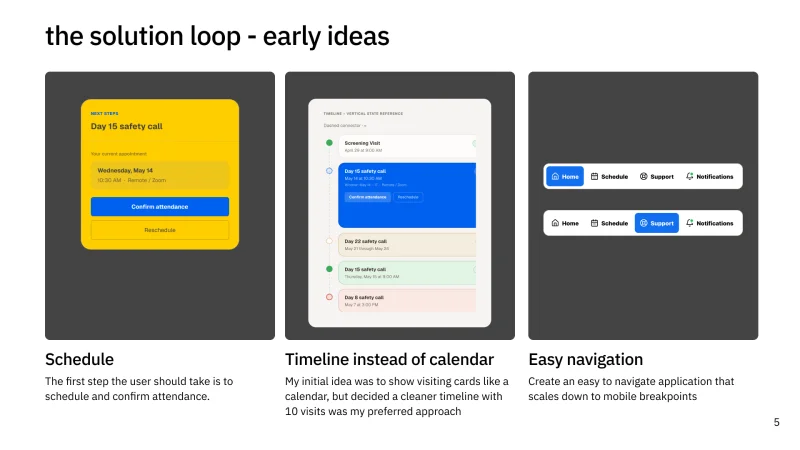
I’ll use my latest case study presentation, Clinical, as an example for POSTER. I had to give this presentation for my interview with Veeva, a healthcare software company.
I had a 45-minute window to present and defend my work in front of a panel of four people. The panel included the design lead, a product manager, the VP of Design, and a Sr. Product Designer.
Knowing your audience is the first key. You can make a lot of safe assumptions about what a panel will care about, but the only way to know for sure is to ask questions and pay attention to what comes up in earlier rounds.
The stack I used:
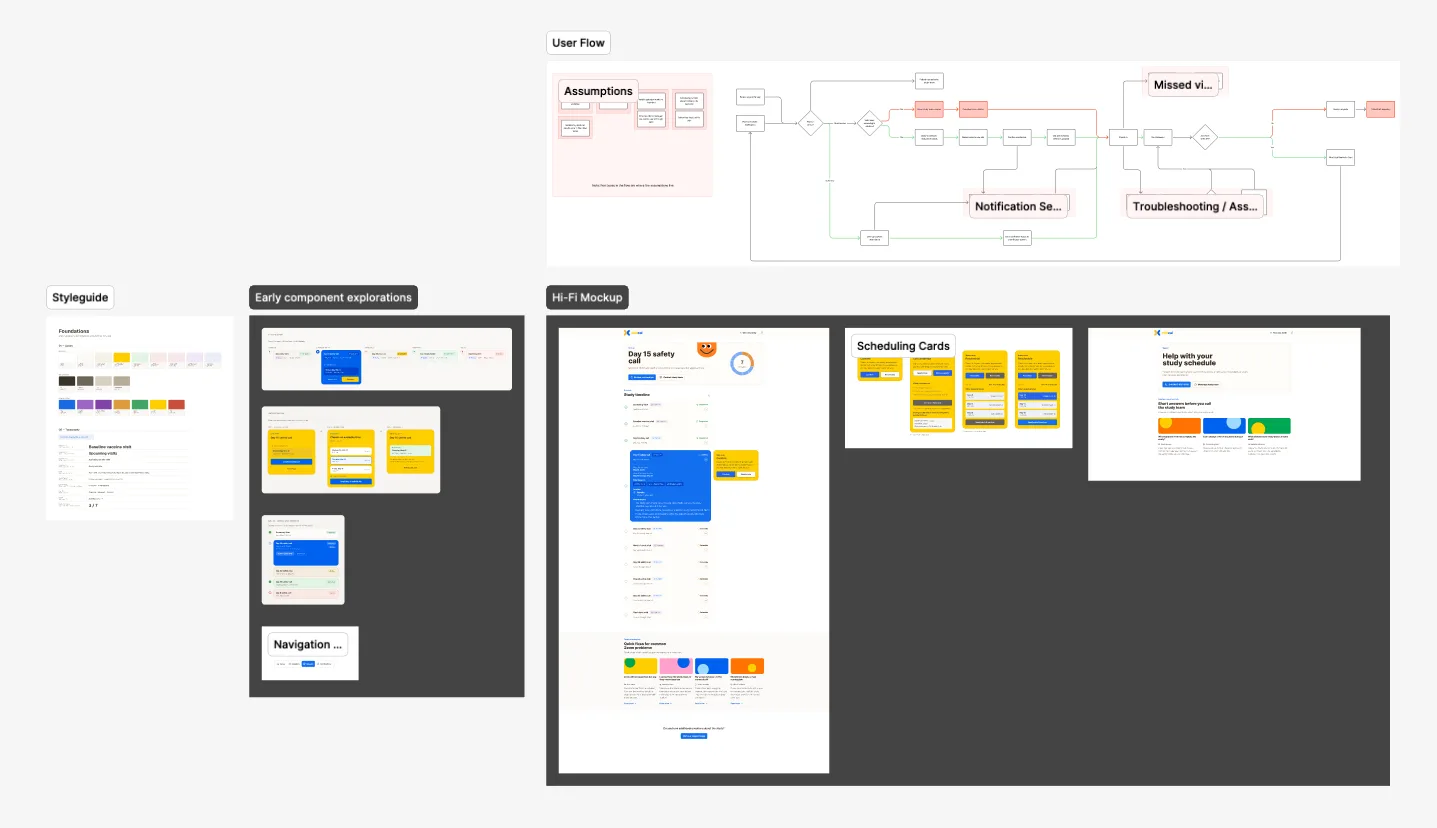
- Slides were built in Figma Slides
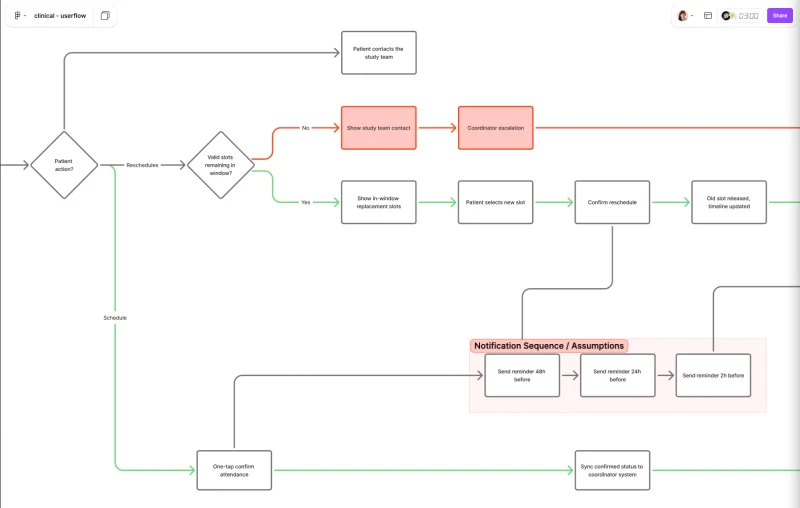
- Workflow diagrams built in FigJam
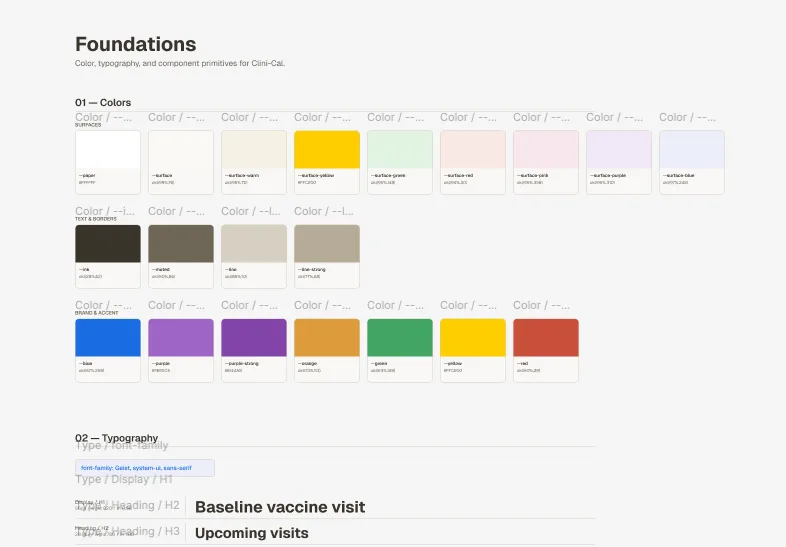
- Frames were built in Figma
- Live prototypes built in NextJS + Claude Code
The whole presentation flow went like this:
- Start with the slides: 4 slides of actual content, 1 for intro, 1 for closing. Slides were light. Enough to introduce the topic. I had copious speaker notes for each slide so I could talk through the details without cluttering the visuals.
- Once the slide presentation was done, I presented the Figma static frames to the panel. I walked them through each frame of my solutions.
- After the static frames, I presented the live prototype built in NextJS + Claude Code. I walked them through the flow and interactions, showing how the solution worked in practice.
- I also had a live version of the prototype they could interact with using Wiremaven tunnel. This let the panel explore the prototype on their own, giving them a hands-on experience of the solution.
Problem: State the problem you set out to solve, in one sentence, on one slide. What was broken and who was it broken for?
Don’t over-explain. The panel needs to understand the stakes.
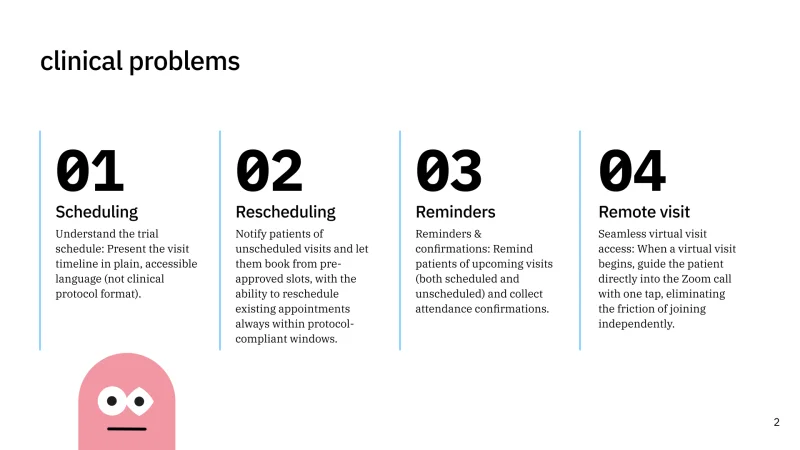
Outcome: What happened as a result of your work? Quantify if you can. “Reduced task completion time by 40%” is stronger than “Made the flow better.”
If you don’t have hard metrics, describe the shift in user behavior or business impact. This is your north star. Everything on subsequent slides traces back to this outcome.
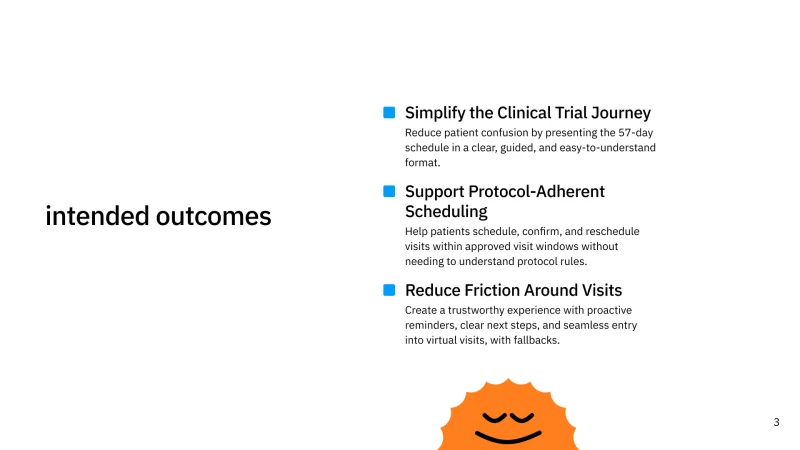
Solution: Show what you built. Lead with the final design.
Panels want to see the destination before they care about the journey. One or two hero screens, cleanly presented.
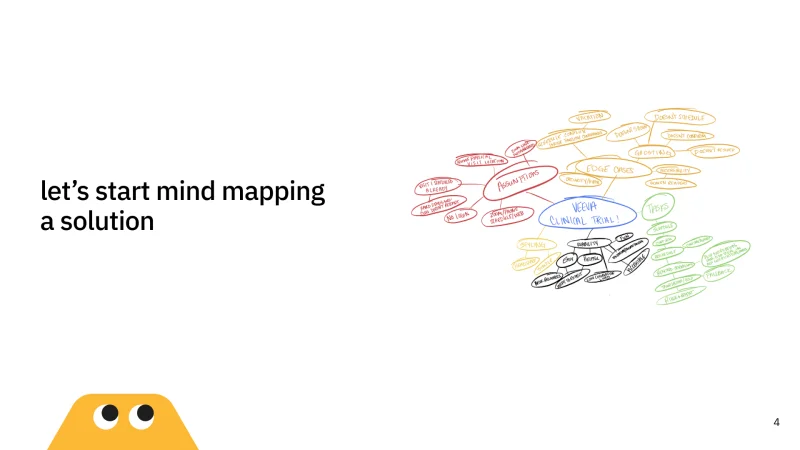
Tactics: How did you get there? This is where your UX process lives: research methods, competitive analysis, usability testing, iterations.
Pick the two or three that mattered most. You’re proving your decisions were intentional.
Evidence: Remember all those artifacts I told you to leave off your portfolio case study? This is where they earn their keep.
Sketches, wireframes, card-sorting results, survey data. Anything that shows your work was grounded in something real.
Be picky. Every artifact on that slide should be pulling its weight.
Risks: What trade-offs did you run into? What assumptions did you have to make?
Panels respect designers who know what they couldn’t solve and why. A slide that says “Here’s the constraint we hit, and here’s how we worked around it” shows them your maturity.
Building a case study presentation is an iterative process, like everything else in design. POSTER gives you a starting point and enough structure to stay on track.
If this is your first case study presentation, a clear framework takes the guesswork out of what to include and what to cut. Go give Dr. Ari a follow if you’re interested in learning more.
Best Platforms for UX Portfolio Presentations
You need a platform you can move through without stopping to think. The tool should disappear so your story can show up. Here’s how the five I’d consider compare, with a closer look at each below.
| Platform | Best for | Watch out for | Exports to .pptx |
|---|---|---|---|
| Figma Slides | Case studies you already built in Figma. Frames paste straight in. | Limited animations, and speaker notes feel bolted on. | Yes, but fonts and gradients can change. |
| Google Slides | Zero learning curve, plus a friend can comment while you edit. | Every design change means re-exporting images from Figma. | Yes |
| Keynote | Mac users who want smooth transitions and a solid presenter display. | Apple devices only, unless you open it through iCloud in a browser. | Yes |
| PowerPoint | Enterprise panels that expect it, and the strongest presenter view. | Manual image exports, and the ribbon is a lot. | It’s the native format. |
| Canva | A polished deck with almost no design effort. | You’re still exporting and placing images. | Yes |
Figma Slides (“Flides”). Native to the design tool you’re already in. Copy-paste frames directly, keep your design fidelity, no export-import dance.
The downside: it’s still maturing. Animations are limited. Speaker notes work but feel bolted on.
If you build your case studies in Figma, Flides is the path of least resistance.
Google Slides. The boring choice, and that’s why it works. Zero learning curve.
Real-time collaboration so a friend can drop feedback while you edit. Offline mode saves you from unreliable conference Wi-Fi.
The catch: you’ll be exporting images from Figma and placing them manually. Every design change means re-exporting. It adds friction.
PowerPoint. Deeper animation controls and better presenter tools than most designers give it credit for. If you’re presenting to enterprise stakeholders, they expect it.
The presenter view with notes, next-slide preview, and timer is genuinely useful. Same cost as Slides: manual image exports. The ribbon UI is a lot if you haven’t touched it since college.
Keynote. If you’re on a Mac, it’s already installed. Magic Move makes before-and-after screens look good with very little work, and the presenter display gives you your notes, the next slide and a clock. It has the same export cost as Google Slides, since every screen comes out of Figma as an image.
Canva. The fastest path to something that looks polished with zero effort on the deck itself. Templates are strong. But you’re still exporting and placing images, and the brand-kit features that make Canva shine for marketing teams don’t matter much for a six-slide case study walkthrough.
Some recruiters ask for a PowerPoint file before the panel, even after you’ve built the whole deck in Flides. Figma Slides can export to .pptx from File > Export slides to, but PowerPoint swaps in its default font for anything it doesn’t have, gradients flatten to solid fills, and interactive elements turn into static images. Plan on a cleanup pass.
The blunt-force fallback still works too: screenshot each frame and drop the images into a blank PowerPoint deck. Neither is elegant. Both get you a file you can email five minutes before a panel.
The honest answer: use whatever you already know.
My own stack for the Veeva interview was Figma Slides for slides, FigJam for workflow diagrams, Figma for static frames, and a live prototype in NextJS and Claude Code, because I was already living in Figma and didn’t want to export 40 frames by hand.
If you’ve spent years in Google Slides, stay there. A well-told story on any of these platforms beats a mediocre one on the “best” tool.
Where to Host and Share It
The deck you built for one panel can keep working after the interview. A few places it can live:
- Your portfolio site. Link a PDF of the deck from the case study page, so a hiring manager skimming the case study can see how you’d walk a room through it.
- A view-only link. Figma Slides, Google Slides and Canva all generate one. Send it to the recruiter after the panel so anyone who missed the session can catch up.
- A PDF attachment, the safest file to email. It opens on any machine and nothing reflows.
- Behance or Dribbble. Good for getting found by people who aren’t hiring yet. Post the visuals there and keep the full story on your own site.
What to Put on the Page (and What to Leave Out)
The golden rule of presentations: short copy, presenter notes for the detail, let visuals carry the weight. Your slides are a backdrop.
If you’re using POSTER, your artifacts live in the Evidence section. Don’t dump everything in. Pick the ones that move the story forward.
Sketches to wireframes to hi-fi mockups show how your thinking progressed without a single word. A competitive analysis chart or a usability test quote makes your decisions feel grounded.
A panel remembers one compelling visual and three bullet points. If you’re stuck on layout, look at a few other designers’ case study decks for ideas, then close the tab before their structure takes over your story.
Should You Tailor Every Presentation?
A LinkedIn post crossed my feed recently telling designers to stop using the exact same presentation for every interview. The argument: you should tweak your slides to highlight what each role cares about most.
I agree in spirit. But in practice, you’re up against real constraints from day one.
The job description, the recruiter, and the hiring manager can all disagree about what’s important. I once got through three rounds of a four-round process before anyone mentioned the role lived in the company’s mobile division.
My most recent case study? Not mobile.
I had two options:
- Dust off an older, less polished mobile project and build a presentation around it.
- Take my strongest work and adapt it to speak to universal business challenges.
I went with option two. I focused the presentation on how my solutions applied to broad problems regardless of platform. The result was a tighter, more confident presentation, and the panel understood my reasoning because I walked them through the decision using the POSTER structure.
Catering With Small Changes
Small, targeted changes go further than people admit. Portfolio presentations almost always happen in a team or panel interview, so your real job is to understand what matters to the people in that room.
Two things help:
- Ask questions before the panel interview. What does this team care about most?
- Pay attention to what keeps coming up in earlier rounds.
During your recruiter screen: which parts of the job description did they highlight? During your design lead conversation: what problems did they circle back to over and over?
Those are your signals. Follow them.
In one recent interview, it became obvious early that the company’s core values were a big deal to them. So I quietly worked the acronym for their values into the corner of my opening slide, then dropped the matching value onto each subsequent slide.
Nobody mentioned it out loud. But they noticed.
Starting Is the Hardest Part
I know it’s overwhelming to think about covering everything a panel might ask. I promise you: build your presentation early, while your case studies are still fresh in your head. It’s so much easier to organize your thoughts now than to panic-assemble something the night before.
Here’s what I wish someone had told me: treat your presentation like a trailer.
Every slide earns its place or it gets scrapped. POSTER gives you the filter, so use it.
If you want a preview of what’s actually running through a reviewer’s head before you ever get to a panel, here’s what I check when I’m the one screening portfolios.
The people across the table are looking for a designer who can think clearly, explain their decisions, and tell a story that makes them want to see what’s next. If you can do that, they’ll lean in.